
Invoices

Click on the New button to create an Invoice
How to create an invoice
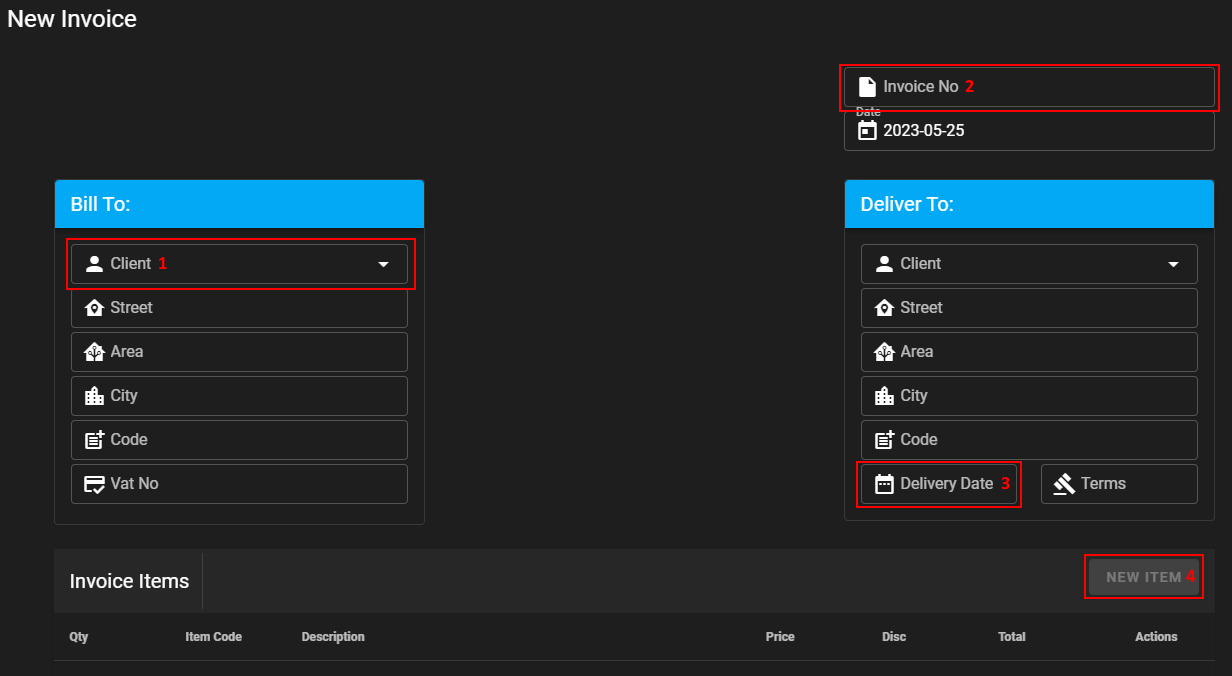
Select the client from the dropdown box.
The invoice number will only be generated once the invoice is saved.
Select the Delivery Date.
The New Item button will only be enabled after the Delivery date is selected.
Field names for header
| Field Name | Description | Required | Read Only |
|---|---|---|---|
| Invoice No | Invoice number | Yes | Yes |
| Date | Date the invoice is created | Yes | Yes |
| Client | Select the client | Yes | |
| Street | Street name and number | Yes | Yes |
| Area | Area name | Yes | Yes |
| City | City name | Yes | Yes |
| Code | Area code | Yes | Yes |
| Delivery Date | Item code | Yes | |
| Terms | Item description | Yes | Yes |
How to add a new item
Info
Item, Description and Price will be populated from the Inventory Module after the module is developed.
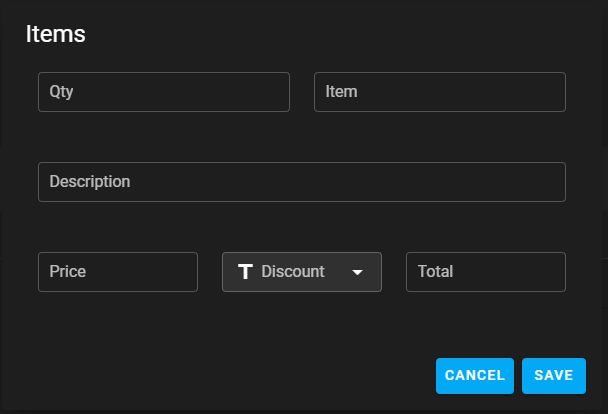
Select the quantity.
Type in the Item Code.
Type in the Description.
Type in the item unit price.
Select the discount.
Total amount.
Click on save.
Field names for items
| Field Name | Description | Required | Numeric | Read Only |
|---|---|---|---|---|
| Qty | The quantity | Yes | Yes | |
| Item | Item code | Yes | ||
| Description | Item description | Yes | ||
| Price | The unit price for the item | Yes | Yes | |
| Discount | Discount for the item | Yes | ||
| Total | Total for the item | Yes | Yes |
How to delete an invoice
WARNING
Invoices can't be deleted.
Invoice footer
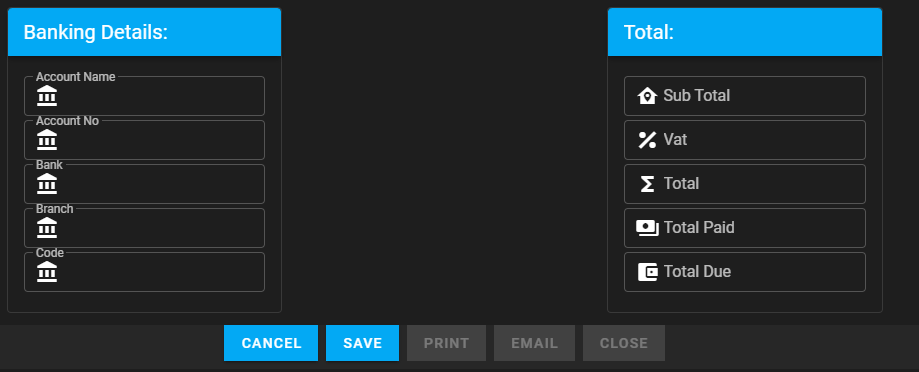
Field names for footer
| Field Name | Description | Required | Numeric | Read Only |
|---|---|---|---|---|
| Account Name | Bank account holder.* | Yes | Yes | |
| Account No | Bank account number.* | Yes | Yes | Yes |
| Bank | Bank name.* | Yes | Yes | |
| Branch | Bank branch name.* | Yes | Yes | |
| Code | Bank branch code.* | Yes | Yes | Yes |
| Sub Total | Sub total | Yes | Yes | Yes |
| Vat | Vat amount.** | Yes | Yes | Yes |
| Total | Total amount.*** | Yes | Yes | Yes |
| Total Paid | Total amount paid | Yes | Yes | Yes |
| Total Due | Total amount due | Yes | Yes | Yes |
* Populated from System Setup.
** Vat Amount if Vat is selected on System Setup.
*** Total Amount, includes Vat if Vat is selected on System Setup.
Button functions

| Button Name | Description |
|---|---|
| Cancel | Cancel Invoice |
| Save | Save Invoice.* |
| Print Invoice.** | |
| Email Invoice.** | |
| Close | Close Invoice.** |
* Invoice number will only be generated after the invoice is saved for the first time.
** Only enabled when invoice is saved or fully paid.
** If invoice need to be emailed, please print invoice as PDF(Microsoft Print to PDF).
Email function
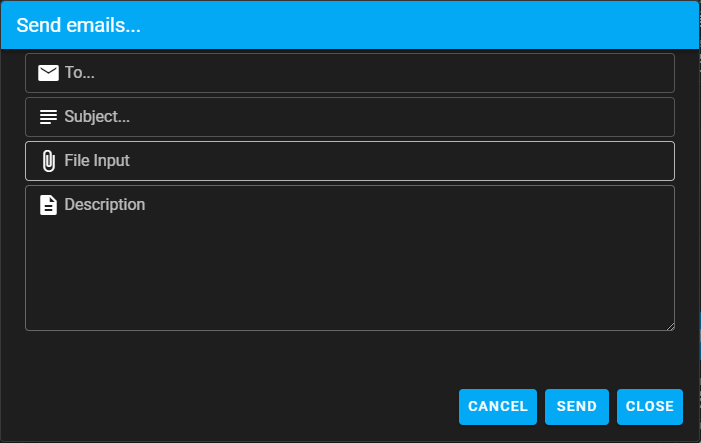
Field names for send email
| Field Name | Description | Required |
|---|---|---|
| To | Email to. | Yes |
| Subject | Email subject. (ex. Invoice 1) | Yes |
| File Input | Select printed invoice to be emailed.* | Yes |
| Description | Description. | Yes |
* Only pdf's can be emailed.